Iconomizer 1.2.0: Find the Perfect Icon from 200,000+ Icons on Iconify
We're excited to announce Iconomizer 1.2.0 is available today with a feature many of you have been asking for: integrated icon search powered by Iconify.design.
Discover Icons Without Leaving the App
Finding the perfect icon for your project just got a whole lot easier. With this update, you can now search the entire Iconify catalog directly from within Iconomizer. That's access to over 200,000 open source icons from more than 150 popular icon sets, all at your fingertips.
Whether you're looking for a specific icon from Material Design, Font Awesome, Heroicons, Lucide, Tabler, or any other major icon library, you can now find it without ever opening your browser.
How It Works
The new search feature is straightforward to use:
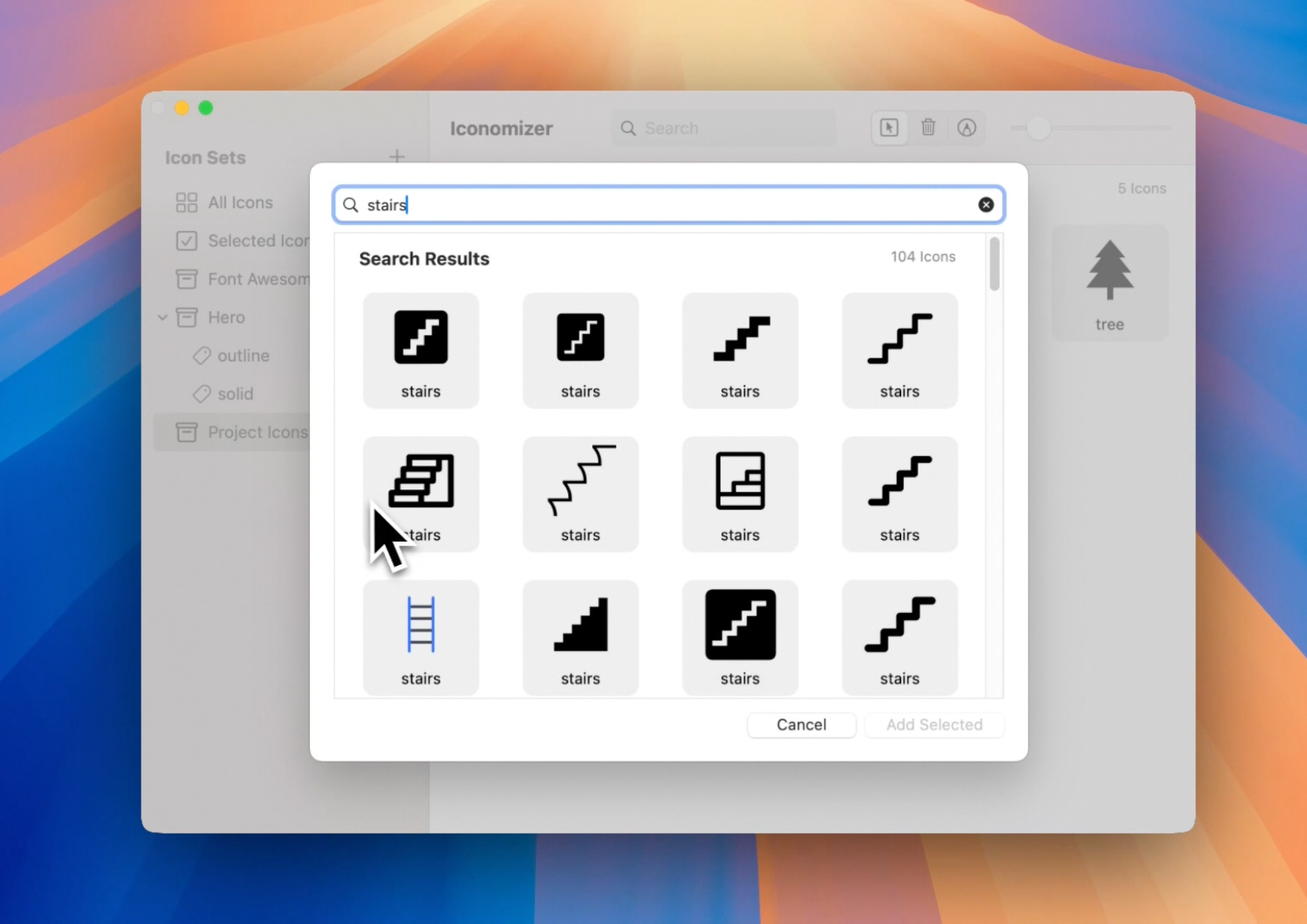
Search by keyword - Type what you're looking for (e.g., "stairs", "electric car", "settings") and instantly see matching icons from across all available icon sets.
Add to your library - Found the perfect icon? Add it directly to your Iconomizer library with a single click.
Export as usual - Once added, icons work just like any other icon in your library. Export them as SVG sprites, web fonts, or individual files.
Why Iconify?
Iconify is a unified icon framework that brings together icons from dozens of open source projects into a single, searchable collection. By integrating with Iconify, Iconomizer gives you access to icons from Material Design, Font Awesome, Heroicons, Phosphor, Remix Icon, and many more, all without needing to download separate icon packs.
A Better Workflow
This integration means you can now manage your entire icon workflow in one place. No more context-switching between icon websites, downloading individual SVG files, and manually importing them. Search, select, and add icons to your project in seconds.
Combined with Iconomizer's existing features for organizing, previewing, and exporting icons, this update makes it easier than ever to build and maintain a cohesive icon library for your projects.
Get the Update
The new version is available now on the Mac App Store. If you have automatic updates enabled, you should receive the update shortly. Otherwise, you can manually check for updates in the App Store app.
We hope this new feature helps streamline your design and development workflow. As always, we'd love to hear your feedback!
SVG Sprites vs Web Fonts: Choosing the Right Icon Solution for Your Web Project
When building modern web applications, icons play a crucial role in creating intuitive, visually appealing interfaces. If you're using a tool like Iconomizer to manage your icon workflow, you've probably noticed it offers two popular export formats: SVG sprites and web fonts. But which should you choose?
Let's dive deep into the strengths and weaknesses of each approach to help you make the right decision for your project.
What Are SVG Sprites?
An SVG sprite is a single SVG file containing multiple icon definitions. Each icon is wrapped in a <symbol> element with a unique ID, and you reference individual icons using SVG's <use> element. Think of it as a spritesheet, but for scalable vector graphics.
What Are Icon Web Fonts?
Icon web fonts treat icons as characters in a custom font file. Popular libraries like Font Awesome pioneered this approach. You display icons using CSS classes or Unicode characters, just like you would with text.
The Detailed Comparison
Feature
SVG Sprites
Web Fonts
Multi-color Support
Full support for multiple colors per icon
Single color only (can be styled with CSS)
Styling Flexibility
Can target individual paths with CSS, apply gradients, filters
Limited to font properties (color, size, shadow)
Accessibility
Semantic HTML, proper ARIA labels, better screen reader support
Screen readers may announce Unicode characters incorrectly
Performance
Only loads icons you use, HTTP/2 friendly
Entire font file loads even if you use one icon
Browser Support
Excellent (IE9+)
Universal
Implementation
Slightly more verbose HTML
Very simple: <i class="icon">
Animation
Full CSS and JavaScript animation support
Limited to transforms and basic CSS
File Size
Typically smaller for small icon sets
More efficient for large icon libraries
When to Choose SVG Sprites
SVG sprites are the modern standard for most web projects. Choose them when:
You need multi-color icons - Logos, illustrations, or colorful UI elements
You want maximum styling control - Gradients, filters, individual path manipulation
Iconomizer Tip
When exporting from Iconomizer as an SVG sprite, you can select exactly which icons to include. This keeps your sprite file lean and improves page load performance.
When to Choose Web Fonts
While less popular than they once were, icon fonts still have valid use cases:
You need extensive icon coverage - Large libraries where you'll use hundreds of different icons
Simple, monochrome icons only - Basic UI icons that don't need color complexity
Quick prototyping - Faster to drop in a CDN link and start using classes
Team familiarity - Your team is already comfortable with Font Awesome-style syntax
Quick Decision Guide
Choose SVG sprites if: Need multi-color icons
Choose web fonts if: Need extremely broad icon coverage with the smallest download size, and want a to simply add set the class name of element to add an icon.
The good news? With Iconomizer, you don't have to choose upfront. You can manage your icon library once and export in either format depending on your project's needs. As your requirements evolve, you can easily switch between formats without reorganizing your entire icon workflow.